A new website launch is the moment most SEO problems get locked in. A forgotten “noindex” tag from staging, old URLs that now return 404 errors, or a hero image that takes five seconds to load can quietly cancel out months of design and content work. Almost all of these problems are easy to catch if you look for them before and right after go-live.
In short: make sure Google can crawl and index the pages you want (and only those), redirect every old URL to its new home, keep pages fast on mobile, and set up Search Console before launch day so you see problems early. This technical SEO checklist is for founders, marketing leads and project managers who want to know exactly what to verify. Each item explains why it matters and how to check it, followed by a 30-day monitoring plan.
How to use this checklist
Run through the items on your staging site, then repeat the critical ones on the live domain within an hour of launch, because robots.txt, environment variables and CDN rules often differ between the two. If you would rather hand this to specialists, our technical SEO service covers these checks along with semantic HTML and on-page work.
Crawlability and indexing
- Remove the staging block. Why it matters: staging sites are usually hidden with a password, a
noindextag or aDisallow: /rule in robots.txt, and any of these shipped to production keeps your site out of search. How to check: search the source of a few live pages for “noindex”, openyourdomain.com/robots.txt, and test a URL with URL Inspection in Search Console. - Use robots.txt and noindex for different jobs. Why it matters: robots.txt controls crawling, not indexing. Google says robots.txt “is not a mechanism for keeping a web page out of Google”, and a blocked URL can still appear in results if other pages link to it. How to check: pages you want out of search (thank-you pages, internal search results) use
noindexand stay crawlable so Google can see the tag. - Publish an XML sitemap. Why it matters: it lists the URLs you want indexed and helps Google discover new pages. Per Google’s sitemap guidelines, one sitemap holds up to 50,000 URLs or 50MB uncompressed, and Google ignores
priorityandchangefreq. How to check: it lists only canonical pages that return a 200 status, uses absolute URLs, and is referenced in robots.txt with aSitemap:line. - Set canonical tags. Why it matters: one page can often be reached through several URLs (with tracking parameters, with or without a trailing slash). Google treats
rel="canonical"as a strong signal for your preferred version, not a strict rule. How to check: every indexable page has a self-referencing canonical, as an absolute URL, matching your sitemap and internal links.
Site architecture and URLs
- Use clean, readable URLs. Why it matters:
/services/seo/is easier to understand and share than/page?id=4821. How to check: lowercase, hyphens between words, no session IDs, and one trailing slash rule across the site. - Pick one secure version of your domain. Why it matters:
http,https,wwwand non-wwware four different addresses to a search engine, and browsers warn visitors on non-secure pages. How to check: every variant lands on your preferred https version in a single redirect, with no mixed-content warnings. - Fix orphan pages and broken links. Why it matters: pages with no internal links pointing to them are easy for crawlers to miss. How to check: run a site crawler such as Screaming Frog or Sitebulb and review orphan pages and broken links.
- Return a real 404 for missing pages. Why it matters: a “page not found” screen that returns a 200 status looks like a real page to search engines. How to check: open a made-up URL and confirm the status code is 404 in your browser’s developer tools.
Redirects when replacing an old site
This is where many rebuilds lose traffic. Every old URL that earned rankings, backlinks or bookmarks needs to point to its new equivalent, or that value is lost and visitors land on an error page. These steps follow Google’s guidance for site moves with URL changes:
- Export every old URL from the old sitemap, Search Console, analytics landing pages and a crawl of the old site, including images and PDFs.
- Map old URLs to new ones, one by one, in a two-column spreadsheet. Sending everything to the home page frustrates visitors and throws away the relevance each old page had built.
- Use permanent redirects. Google recommends 301 or 308 redirects and notes they don’t cause a loss in PageRank. Do not use temporary 302s for permanent moves.
- Avoid redirect chains. Point each old URL straight to its final destination, watching for hops added by http-to-https and trailing slash rules.
- Keep redirects for at least a year. Google advises keeping them “for as long as possible, generally at least 1 year,” so document where they live before any hosting change.
- Update internal links so navigation, content and the sitemap point directly to the new URLs.
- Use the Change of Address tool in Search Console only if you are moving to a new domain or subdomain.
- Test before and after the DNS switch. Run the old URL list through a crawler and confirm each returns a single 301 to a page that returns 200.
Expect some movement. Google warns of temporary ranking fluctuation, and for a medium-sized site it can take a few weeks or more for new URLs to replace old ones in results.
Performance and Core Web Vitals
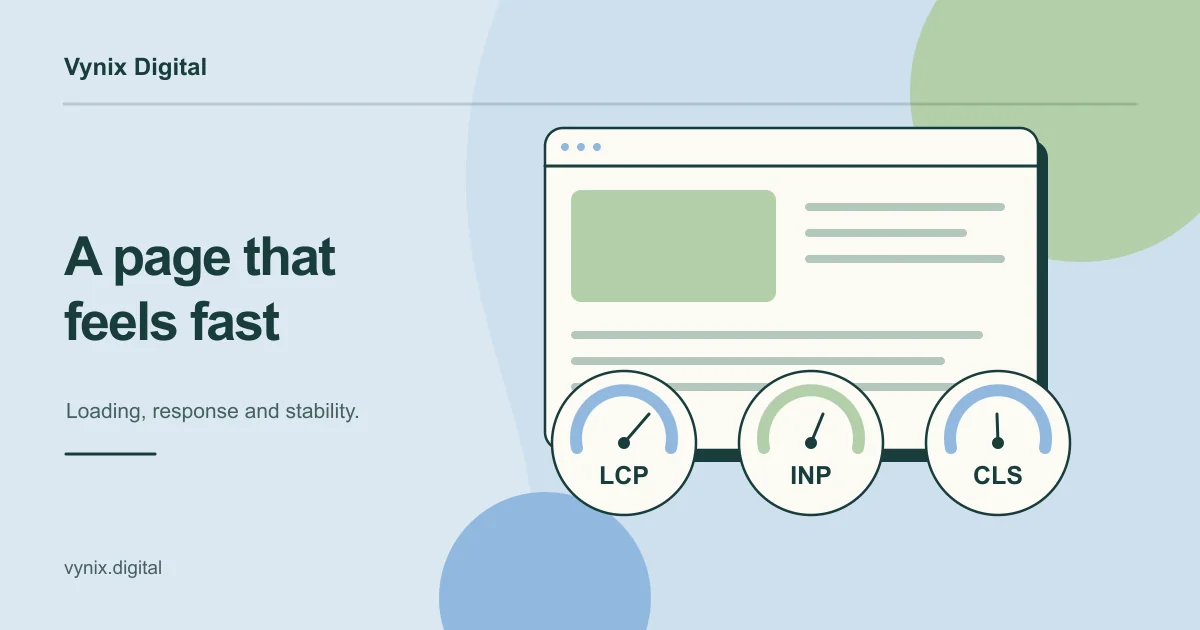
Core Web Vitals are Google’s three metrics for real-user experience. The thresholds below come from web.dev, which measures them at the 75th percentile of page loads, separately for mobile and desktop.
| Metric | What it measures | Good score | Common causes of poor scores |
|---|---|---|---|
| Largest Contentful Paint (LCP) | How quickly the main content appears | 2.5 seconds or less | Oversized hero images, slow server response, render-blocking CSS and JavaScript |
| Interaction to Next Paint (INP) | How quickly the page responds to clicks, taps and key presses | 200 milliseconds or less | Heavy JavaScript and third-party scripts such as chat widgets |
| Cumulative Layout Shift (CLS) | How much content jumps around while loading | 0.1 or less | Images without set dimensions, late-loading banners, swapping web fonts |
- Test every template, not just the home page. Why it matters: blog posts, product pages and landing pages each load different code and media. How to check: run PageSpeed Insights on one URL per template with mobile settings.
- Optimize the LCP element. Why it matters: on most marketing pages, the hero image decides LCP. How to check: it is served as WebP or AVIF, sized for the screen, and not lazy-loaded.
- Audit third-party scripts. Why it matters: analytics, chat and ad pixels add up and often drag down INP. How to check: remove or delay any script not earning its place.
- Know lab data from field data. Lighthouse simulates one page load, while Search Console’s Core Web Vitals report uses real visitors. A new site may lack enough real-user data at first, so rely on lab tests until it fills in.
If these numbers are hard to hit, the fix may lie in how the site is built (rendering, image handling, script loading), which is worth settling with your web development team during planning.
Mobile
Google uses the mobile version of a site’s content for indexing and ranking, so anything missing on mobile may as well not exist.
- Same content on mobile and desktop. Why it matters: text or links removed from the mobile layout may be ignored. How to check: compare key pages on both, especially tabs and accordions, and do not lazy-load primary content on user interaction.
- Same structured data and meta robots tags. This matters if you serve separate mobile URLs or different HTML by device. Responsive sites serve the same HTML to every device, so they are covered.
- Let Google crawl your resources. Why it matters: blocked CSS, JavaScript or images stop Google from rendering pages properly. How to check: review robots.txt and test pages with URL Inspection.
- Test on real phones. Small tap targets, tiny text and pop-ups covering content push visitors away.
Structured data
Structured data describes your content for search engines and can make pages eligible for rich results such as breadcrumbs or product details.
- Use JSON-LD. Google recommends JSON-LD where your setup allows it.
- Start with types that fit your business: Organization or LocalBusiness, BreadcrumbList, Article for blog posts, and Product for online stores.
- Only mark up visible content. Google says not to add structured data about information that is not visible to the user.
- Validate before launch with the Rich Results Test, then watch the related Search Console reports.
- Set expectations. Valid markup makes a page eligible for rich results. It does not guarantee them.
Metadata and headings
- A unique title tag on every page. Why it matters: it signals the page topic and often becomes the clickable headline in results. How to check: crawl for missing or duplicate titles, with the main topic near the start.
- A meta description written to earn the click. Why it matters: it often appears under the title and shapes whether people click. How to check: unique and specific on every page.
- One H1 and a logical heading order. Why it matters: headings help readers and search engines follow the page. How to check: one H1 stating the page purpose, then H2s and H3s in order, using real heading tags rather than styled text.
Images
- Descriptive file names and alt text. Alt text helps screen reader users and gives search engines context. Describe the image plainly instead of stuffing keywords.
- Compress, resize and set dimensions. Serve images at their displayed size, use
srcsetfor different screens, and set width and height to prevent layout shift. - Lazy-load below the fold only. Never lazy-load the hero image.
- Use real image elements for important images. CSS background images are harder for search engines to treat as content.
Internationalization basics
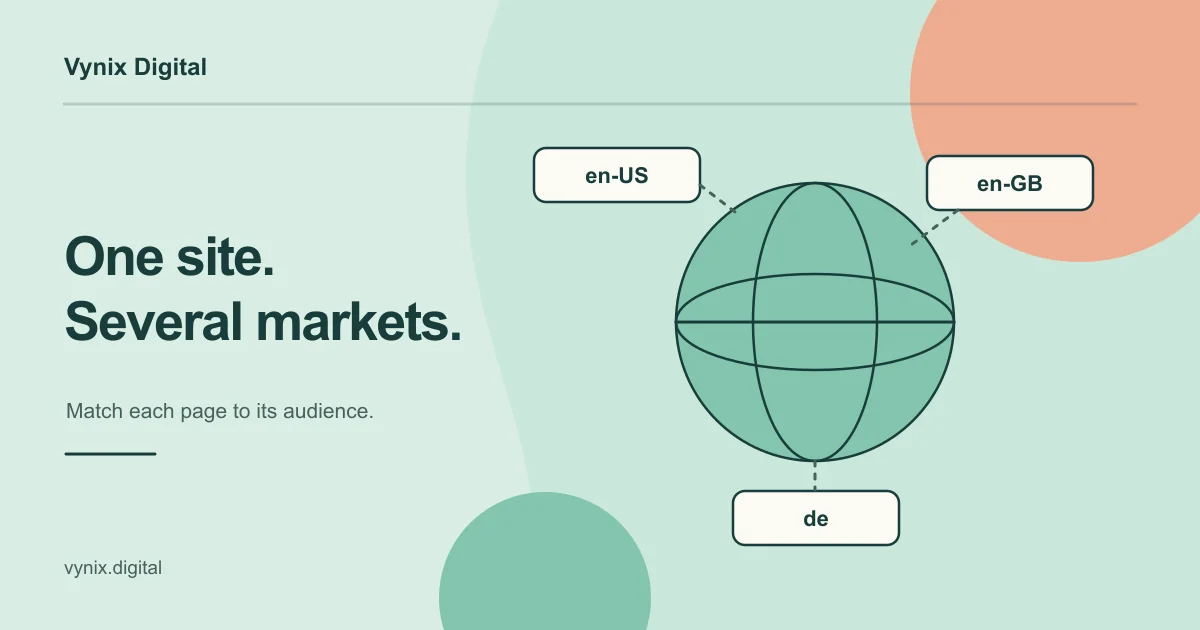
Skip this if your site serves one language. If it serves several, follow Google’s guidance on localized versions:
- Give each language its own URL, such as
/de/and/fr/subfolders, instead of switching language on one URL with cookies. - Add hreflang annotations. Each version must list itself and all other versions. If two pages don’t point to each other, Google ignores the tags.
- Use fully qualified URLs, including
https://. - Pick one method. Google treats HTML link tags, HTTP headers and sitemaps as equivalent.
- Add an
x-defaultfor a language selector page or a fallback.
Search Console and analytics setup
- Verify Search Console before launch. A Domain property covers every subdomain and both http and https.
- Submit your sitemap on launch day and request indexing for the home page and key pages with URL Inspection.
- Add Bing Webmaster Tools. It can import verified sites from Search Console.
- Install analytics and test conversions. Submit a test form and run a test purchase, then confirm each is recorded. If leads are the real goal, our guide on why a website is not generating leads covers what to fix beyond SEO.
What to monitor in the first 30 days
| When | What to check |
|---|---|
| Launch day | robots.txt and noindex on live pages, sitemap submitted, top 20 old URLs redirect correctly, forms and tracking work |
| Days 2 to 7 | Search Console’s Page indexing report for “Excluded by noindex tag”, “Blocked by robots.txt” and “Not found (404)”, plus a full crawl of the live site |
| Weeks 2 to 3 | Impressions and clicks for top pages versus the old site, misdirected redirects, and whether the Google-selected canonical in URL Inspection matches yours |
| Week 4 | Core Web Vitals report (if data exists), structured data reports, and conversions versus your pre-launch baseline |
Fix issues in order of traffic impact: a broken redirect on a popular old page matters more than a missing alt attribute.
Common mistakes
- Shipping the staging noindex or
Disallow: /rule. The most avoidable launch problem, and it can go unnoticed for weeks. - Blocking a page in robots.txt so Google never sees its noindex tag.
- Redirecting every old URL to the home page instead of its closest equivalent.
- Testing speed only on the home page.
- Marking up content that is not on the page, which can make pages ineligible for rich results.
- Launching without Search Console or analytics, leaving no baseline to judge the new site against.
- Leaving SEO to the final week. URL structure and redirects are planning decisions. If you are still scoping budget, our breakdown of what a business website costs can help you plan for this work up front.
Plan technical SEO into the build
A smooth launch comes from treating technical SEO as part of the build, not a task for the last afternoon. Settle URLs and redirects during planning, test every template on staging, check again on the live domain, and watch Search Console for the first month.
If you are planning a new site or a rebuild and want a second pair of eyes on this, our SEO team can review your setup before and after launch. Get in touch through our contact page to talk through your project.