Your website can look fine on office Wi-Fi and still feel slow, jumpy or unresponsive to a visitor on a mid-range phone. Google measures that experience with three metrics called Core Web Vitals, and the results sit in your Search Console account whether anyone on your team checks them or not.
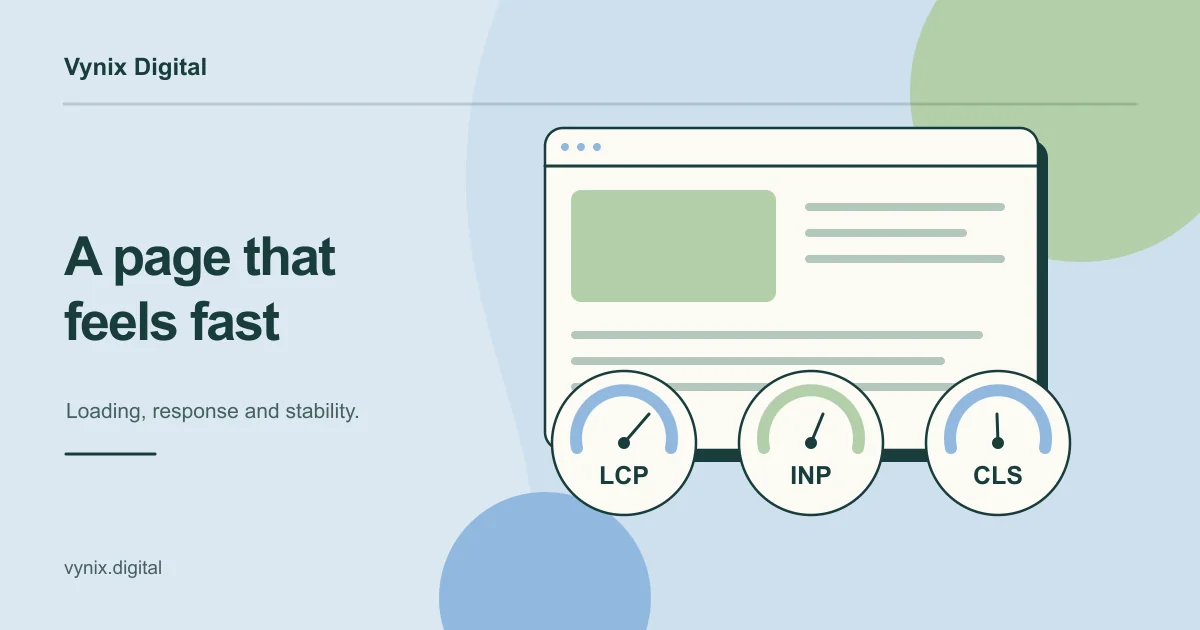
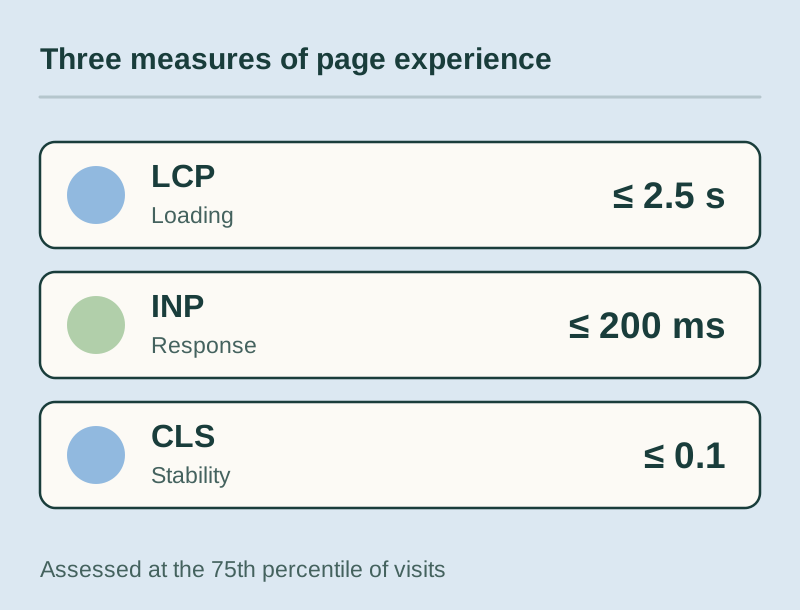
In short, Core Web Vitals measure loading (Largest Contentful Paint, or LCP), responsiveness (Interaction to Next Paint, or INP) and visual stability (Cumulative Layout Shift, or CLS). A page passes when LCP is 2.5 seconds or less, INP is 200 milliseconds or less and CLS is 0.1 or less, measured across real visits. This guide is for founders and marketing leads who want to understand the scores, read the reports correctly, and know which fixes to ask their developers for.
What Core Web Vitals are and why they matter
Core Web Vitals describe how a page feels to a real person, and Google publishes the definitions and thresholds on web.dev. Google’s Search documentation says good scores align with what its core ranking systems seek to reward, and it recommends that site owners achieve them (Google Search Central).
They will not rescue thin content, though. The bigger payoff is often commercial: a page that loads quickly and stays still is easier to read, trust and buy from. For the rest of a technical audit (crawling, indexing, structured data), see our technical SEO checklist.
The three metrics, explained plainly
Largest Contentful Paint (LCP): loading
LCP measures how long it takes for the largest visible image or text block to render after the page starts loading. On most sites that is the hero image, a product photo or the main headline. If your header appears instantly but the hero photo shows up at 4 seconds, your LCP is 4 seconds.
Interaction to Next Paint (INP): responsiveness
INP measures the delay between a user action (a click, a tap, a key press) and the next time the screen visibly updates. It watches interactions across the whole visit and reports a value close to the slowest one. INP became a stable Core Web Vital in 2024, taking over from First Input Delay (web.dev). A typical failure: someone taps “Add to cart” and nothing happens for half a second because a script is busy.
Cumulative Layout Shift (CLS): visual stability
CLS scores how much visible content moves unexpectedly while the page is open. It has no unit, and lower is better. You have felt it when you reach for a link, a banner loads above it, and you tap the wrong thing.
The thresholds
Google assesses each metric at the 75th percentile of page loads, separately for mobile and desktop (web.dev). Put simply, at least three out of four visits need to land in the good range. These are the ranges Search Console uses (Search Console Help):
| Metric | Measures | Good | Needs improvement | Poor |
|---|---|---|---|---|
| LCP | Loading | 2.5 s or less | Up to 4 s | Over 4 s |
| INP | Responsiveness | 200 ms or less | Up to 500 ms | Over 500 ms |
| CLS | Visual stability | 0.1 or less | Up to 0.25 | Over 0.25 |
A page passes only when all three are good. In Search Console, a group of URLs takes the status of its worst metric, so a perfect LCP will not save a page with poor CLS.
Field data vs lab data
Field data comes from real Chrome users through the Chrome User Experience Report (CrUX), and it is what Search Console’s report is built on. It reflects real phones and networks, but it lags behind your changes, and low-traffic pages may have none.
Lab data comes from a simulated test, such as Lighthouse or Chrome DevTools, on one device and connection profile. It is instant and repeatable, so it suits debugging. Lighthouse cannot measure INP because nobody is clicking anything, so it uses Total Blocking Time (TBT) as a stand-in (web.dev).
| Aspect | Field data | Lab data |
|---|---|---|
| Source | Real Chrome users (CrUX) | A simulated test run |
| Where to see it | Search Console, top of PageSpeed Insights | Lighthouse, Chrome DevTools, lower part of PageSpeed Insights |
| Measures INP | Yes | Not in Lighthouse (TBT is the proxy) |
| Feedback speed | Weeks | Instant |
| Best for | Knowing whether you pass | Finding the cause |
When the two disagree, trust field data for pass or fail and use lab data to find out why.
How to measure your Core Web Vitals
PageSpeed Insights
Paste a URL into PageSpeed Insights and you get both kinds of data on one screen. The top section shows field data for that URL and the whole site, when Google has enough real visits. Below it is a Lighthouse lab run with diagnostics. Start on the mobile tab, since that is where most sites struggle.
Search Console’s Core Web Vitals report
This is your site-wide view, split into mobile and desktop. It groups URLs that share a similar experience, which usually means pages built from the same template (Search Console Help). Fix the blog post template once and hundreds of URLs improve together. After you ship a fix, start validation, which monitors the issue for 28 days before marking it fixed.
A simple measurement routine
- In Search Console, note which metric fails, on which device, for which URL groups.
- Run one example URL per failing group through PageSpeed Insights.
- Use the lab diagnostics to find the likely cause (see the table below).
- Fix it at the template or component level and deploy.
- Start validation and give field data several weeks before judging the result.
Common causes and fixes for each metric
A small set of problems causes most failures. Use this table as a starting point with your developers.
| Metric | Common cause | Typical fix |
|---|---|---|
| LCP | Oversized hero image | Resize it, serve WebP or AVIF, and use responsive srcset sizes |
| LCP | Hero image lazy-loaded, set as a CSS background or injected by JavaScript | Use a normal <img> tag, never lazy-load it, add fetchpriority="high" |
| LCP | Slow server response | Page caching, a CDN, better hosting, fewer database queries per page |
| LCP | Render-blocking CSS and JavaScript | Inline critical CSS and defer non-essential scripts |
| LCP | Content that only renders in the browser | Server-side rendering or static generation for key pages |
| INP | Long JavaScript tasks on the main thread | Break up long tasks, remove unused code, load code per route |
| INP | Heavy third-party scripts (chat, tag managers, testing tools) | Remove what you do not use and delay the rest until after the first interaction |
| INP | Event handlers that finish all their work before updating the screen | Show visual feedback first, then run the slow work |
| INP | Very large DOM or costly re-renders | Simplify markup, paginate or virtualize long lists |
| CLS | Images, videos and iframes without dimensions | Set width and height or a CSS aspect-ratio |
| CLS | Ads and embeds that load late | Reserve their space with a minimum height |
| CLS | Cookie banners or promo bars that push content down | Overlay them, or reserve space from the start |
| CLS | Web fonts swapping and reflowing text | Preload key fonts and use a fallback font with matched metrics |
Your platform shapes which rows apply. WordPress sites often fail LCP because of heavy themes and stacked plugins (see our guide to fixing a slow WordPress site). JavaScript-heavy React apps are more likely to struggle with INP, while prebuilt static pages tend to start with good LCP, one reason teams consider the approach in Jamstack explained. When the build itself is the bottleneck, a rebuild through our web development service can be more practical than patching the same template repeatedly.
How to decide what to fix first
You rarely need to fix everything at once. A practical order:
- Mobile before desktop, since that is usually where the failures are.
- Money pages first: product, service and landing page groups that carry traffic or leads.
- Templates over single pages, since one template fix moves a whole URL group.
- Cheap wins before rebuilds. Image sizing, explicit dimensions and removing unused scripts carry little risk; moving rendering to the server is a bigger project.
Expect trade-offs. Removing a chat widget can fix INP quickly, but marketing may rely on it. Loading it after the first interaction, or only on pages that need it, is often a fair compromise. Weighing these fixes against search impact is a core part of technical SEO work.
Common mistakes
- Chasing a Lighthouse score of 100. The lab score is a diagnostic. Field data decides whether you pass, and the two often disagree.
- Testing on a fast laptop only. Office fiber and a recent laptop hide problems your mobile visitors hit every day.
- Judging a fix the next day. Field data takes weeks to reflect a change.
- Lazy-loading the hero image. Lazy loading helps below the fold and hurts the LCP element.
- Fixing one URL instead of the template. The next page built from that template fails the same way.
- Ignoring third-party scripts. Tag managers, chat and ad scripts are frequent INP problems, and nobody fixes them unless someone owns them.
Conclusion
Core Web Vitals come down to three things: the main content shows up fast, the page responds, and the layout stays still. Use Search Console to see whether you pass, PageSpeed Insights to find out why, and fix causes at the template level, starting with your most valuable mobile pages.
If your reports are full of red, our SEO service can help you trace the causes and plan fixes alongside your developers. Tell us about your site through our contact page and we can talk through what is worth fixing first.