If you run ads or care about leads, you need to know which visits turn into something useful: a booked call, a quote request, a purchase. GA4 conversion tracking is how you get that answer. The catch is that GA4 no longer uses the word “conversion” the way older guides do, and many setups quietly count the wrong things.
The short version: pick a handful of actions that matter, make sure GA4 receives an event for each one, mark those events as key events, test them in DebugView, and import them into Google Ads if you advertise. This guide walks founders and marketing leads through each step, including form tracking with Google Tag Manager and the mistakes that most often break the numbers.
Step 1: Decide which actions actually matter
Before touching any settings, write down the three to five actions that signal real business value. A good key event is something you would happily pay for if an ad produced it. Page views and scrolls rarely qualify. A demo request almost always does.
A quick test: if this number doubled next month, would revenue or pipeline likely follow? If not, track it as a normal event and leave it unmarked.
| Business type | Key events (marked) | Supporting events (not marked) |
|---|---|---|
| B2B services | Contact form submitted, call booked | Pricing page view, case study view |
| SaaS | Trial sign-up, demo request | Feature page views, video plays |
| Ecommerce | Purchase | Add to cart, begin checkout |
| Local business | Quote request, phone click | Service page views, directions click |
Use consistent event names, ideally Google’s recommended ones such as generate_lead, sign_up and purchase. If you’re unsure which stages of your journey deserve a key event, our marketing funnel guide helps you map them first.
Step 2: Understand events, key events and conversions
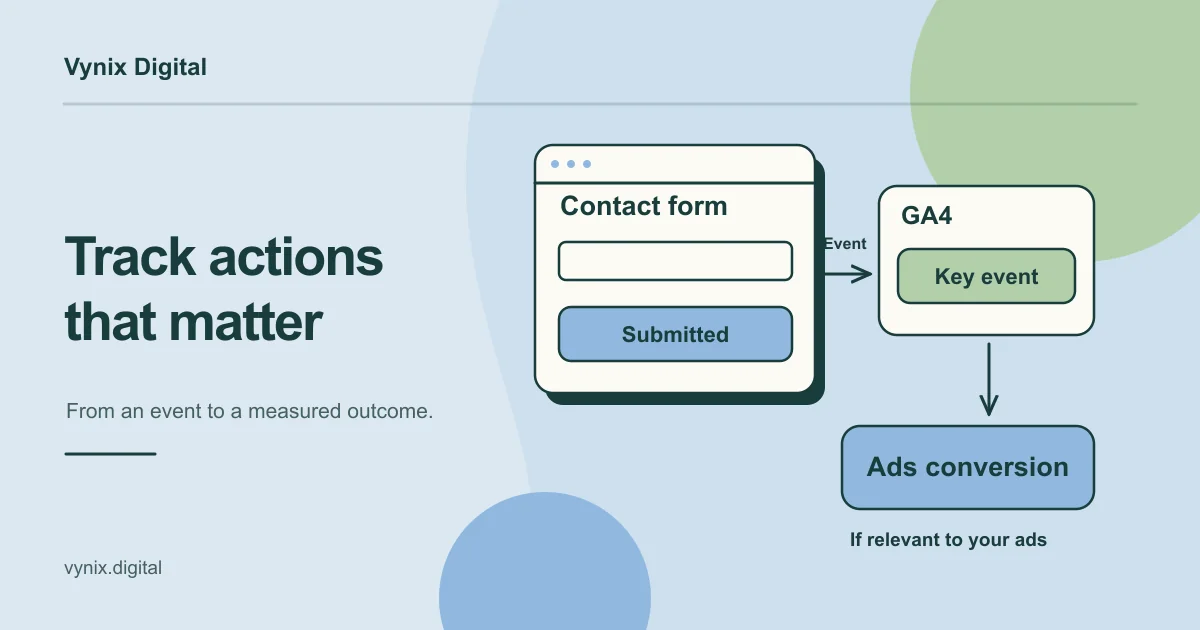
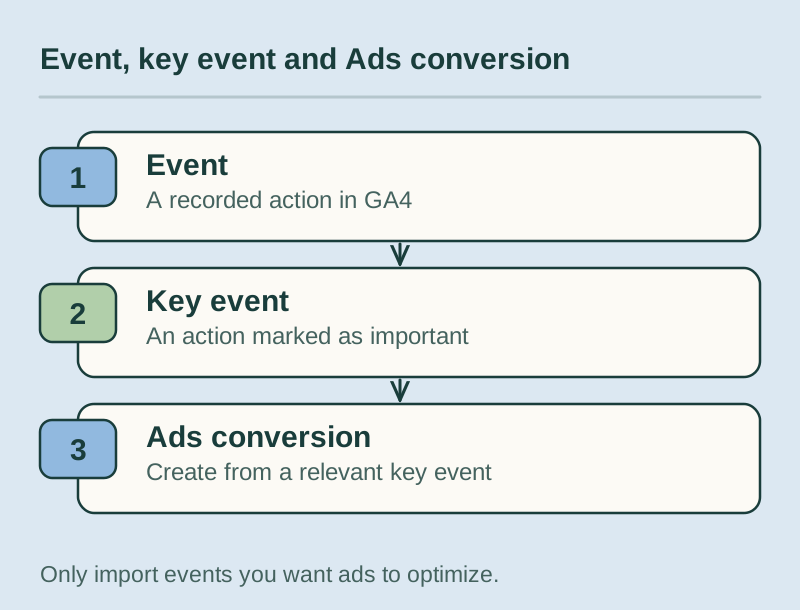
GA4 records almost everything as an event: a page view, a click, a file download.
A key event is an event you have flagged as important. Google defines it as “an event that measures an action that’s particularly important to the success of your business” (Google Analytics Help). Older tutorials call these conversions. Google renamed them key events, and the word “conversion” now belongs mostly to advertising: you create a conversion in Google Ads from a GA4 key event, and Google uses it to measure ad performance and guide bidding.
| Term | Where it lives | What it does |
|---|---|---|
| Event | GA4 | Records any user action |
| Key event | GA4 | Flags an event as important in your reports |
| Conversion | Google Ads (shared with GA4) | Measures ad results and feeds bid strategies |
In practice, every conversion should start life as a key event, but not every key event needs to become a Google Ads conversion.
Step 3: Mark key events in GA4
According to Google’s instructions (Google Analytics Help):
- Go to Admin, and under Data display, click Events.
- Find the event in the Recent events list.
- Click the star icon next to it.
An event has to arrive at least once before it appears in that list. If it hasn’t fired yet, click “+ Create event”, enter the exact event name, and turn on the “Mark as key event” toggle. You’ll also choose a default value and a counting method. Choose the counting method deliberately: a visitor who submits your contact form twice in one visit is usually still one lead.
Also from that page: standard properties allow up to 30 key events (50 on Analytics 360). Marking an event doesn’t change historic data, and standard reports can take up to 24 hours to show it. You need Editor access or above to mark an existing event. GA4 also marks purchase as a key event by default.
Step 4: Choose how to track form submissions
Forms are where most lead tracking goes wrong, so pick your method on purpose.
Thank-you page. If the form sends people to a page like /thank-you/, you can count visits to it. In GA4, use “+ Create event” to build a custom event (for example generate_lead) that fires when event_name equals page_view and page_location contains /thank-you/, then mark it as a key event. It needs no code, but anyone who refreshes, bookmarks or finds the page in search gets counted too. Add a noindex tag and keep the page out of your navigation.
Enhanced measurement. GA4 can send form_start and form_submit events automatically. It’s a useful rough signal, but it tends to fire on forms you don’t care about (newsletter boxes, site search) and can miss forms that submit without reloading the page.
Custom event through Google Tag Manager. More setup, but you control exactly which submissions count.
| Method | Setup effort | Accuracy | Best for |
|---|---|---|---|
| Thank-you page | Low | Medium | Simple sites with a redirect after submit |
| Enhanced measurement | None | Low | A quick first look |
| GTM custom event | Medium | High | Lead generation sites and ad-driven funnels |
Step 5: Set up form tracking in Google Tag Manager
Google Tag Manager (GTM) is a free tool that lets you add and change tracking without editing your site’s code every time. Install the GTM container on your site, add a Google tag with your GA4 measurement ID, then:
- Create a trigger. For standard HTML forms, use the built-in Form Submission trigger and tick “Check Validation” so it only fires when the form passes validation. Limit it to one form with a condition such as Form ID equals
contact-form. - Handle background (AJAX) forms differently. Many WordPress plugins and app forms submit without a page reload, so the normal submit never happens. The cleanest fix is a dataLayer push from the form’s success handler, for example
dataLayer.push({event: 'lead_submitted', form_name: 'contact'}), picked up by a Custom Event trigger. If you can’t edit code, an Element Visibility trigger on the success message is a workable fallback. - Create the tag. Add a “Google Analytics: GA4 Event” tag, set the event name to
generate_lead, and add useful parameters such asform_name. Never send names, email addresses or phone numbers. - Test before publishing (next step).
If nobody on your team can add that dataLayer line, it’s a small developer task (see our WordPress development and support service if your site runs on WordPress).
Step 6: Test with DebugView
Never trust a key event you haven’t watched fire. GTM’s Preview mode opens Tag Assistant and puts your browser in debug mode, so your test events appear in GA4 under Admin, Data display, DebugView.
Run a real test script:
- Submit the form with a missing field and confirm no event fires.
- Submit it correctly and confirm
generate_leadappears once, with the right parameters. - Refresh the thank-you page and check whether it fires again.
- Repeat on a phone and in a second browser.
Once DebugView looks right, publish the container. Check the Realtime report within minutes and your standard reports the next day. Then compare GA4’s lead count with your CRM or inbox for a week. If GA4 shows 40 leads and your inbox shows 25, something is double-firing. Clean numbers here are also a prerequisite for any A/B test you run on your pages.
Step 7: Link GA4 to Google Ads
If you run Google Ads, link the accounts so bidding learns from real outcomes. In GA4, go to Admin, Product links, Google Ads links, and connect your account. Then, in Google Ads, create a new conversion action by importing your GA4 key event. Google notes that a linked account is required and that the resulting conversion is shared between the two platforms (Google Analytics Help).
Import only what you want to optimize for, usually your main lead or purchase event, and set anything else as secondary so it’s reported without steering bids. Expect small gaps between GA4 and Google Ads figures, since the two platforms attribute and date conversions differently. This kind of measurement work is the foundation of the performance marketing in our digital marketing services.
Common mistakes
- Marking too many key events. If scrolls and page views count, your key event rate looks great and means nothing.
- Double counting. Enhanced measurement’s
form_submitand your GTMgenerate_leadboth marked as key events, or GA4 installed twice (hard-coded and through GTM). - Counting failed submissions. Form triggers without validation checks record attempts, not leads.
- Leaving thank-you pages indexable. Visitors from search inflate your lead count without ever filling in the form.
- Ignoring consent. For EU and UK visitors, your cookie banner and consent settings change what GA4 records, so set up consent mode properly and expect some gap against your CRM.
- Never re-testing. A redesign, a new form plugin or a changed form ID can silently break tracking. Put a tracking check on every launch, as our website redesign checklist suggests.
- Sending personal data. Emails or phone numbers in event parameters or URLs break Google’s policies and create privacy risk.
Conclusion
Reliable GA4 conversion tracking comes down to a short list of meaningful actions, consistent event names, careful form tracking and a proper test before every publish. Get those right and your reports, your ad bidding and your budget decisions all start pointing in the same direction. If the data then shows plenty of traffic but few leads, read our guide on why a website isn’t generating leads and our landing page best practices.
If you’d like help choosing key events, setting up Google Tag Manager or connecting GA4 to your ad accounts, see our digital marketing services and tell us about your project.