You have a product idea, or a website or app that is underperforming, and someone tells you it “needs UX work first.” That is often good advice, but UI/UX projects can feel vague from the outside. It is hard to know what you are paying for, what you get back, and when you get a say.
The short answer: a good UI/UX design process moves from research to structure to visuals to testing, and every step produces something you can review. You define goals and users, map how people move through the product, sketch wireframes, add the visual layer, build a clickable prototype, test it with real people, then package it for developers. This guide covers each step, the deliverables to expect, what affects the timeline, how to give useful feedback, and the mistakes that cost the most later.
The UI/UX design process at a glance
UI (user interface) is what people see and touch: screens, buttons, type, color. UX (user experience) is the whole journey: whether people can find what they need and finish the task they came for. UX decisions come first because they shape what the interface has to show. Here is what a typical engagement covers.
| Step | What happens | What you should receive |
|---|---|---|
| 1. Discovery and research | Clarify business goals, users, competitors and constraints | Research summary, user profiles, competitor notes, agreed success metrics |
| 2. Information architecture and user flows | Decide what content and features exist and how people move between them | Sitemap or app map, diagrams of key user flows |
| 3. Wireframes | Lay out key screens in plain, low-detail form | Annotated wireframes for core screens |
| 4. Visual design | Apply brand, type, color, imagery and spacing | High-fidelity mockups, including mobile and key states |
| 5. Interactive prototypes | Link screens into clickable flows | A shareable prototype link |
| 6. Usability testing | Watch real users attempt key tasks | Findings ranked by severity, with recommended fixes |
| 7. Design system and handoff | Package components, styles and specs for developers | Component library, style guide, developer-ready files |
| 8. Iteration after launch | Review real usage and improve | Analytics review and a prioritized list of design updates |
Step 1: Discovery and research
Discovery answers three questions: what the business needs, who the users are, and what they already use instead. Expect stakeholder interviews, a review of your analytics and support tickets, a walkthrough of competitor products, and ideally a few conversations with real or likely users.
Say you run a scheduling tool and trial users drop off before booking their first appointment. Support tickets might show people get stuck connecting their calendar. That one finding can reshape the project: the priority becomes onboarding, not a new dashboard.
Your job here is access. Share analytics, introduce the designer to your sales and support staff, and hand over any past research. The deliverable is a short summary with user profiles, competitor notes and the metrics you will use to judge success.
Step 2: Information architecture and user flows
Information architecture (IA) is how content and features are organized and labeled, so people can find things. For a website it usually takes the form of a sitemap. For an app it is a map of the main sections and navigation.
User flows are step-by-step paths for the tasks that matter most, such as “sign up, connect a calendar, book the first appointment.” Good flows also cover what happens when things go wrong: a failed payment, an expired link, an empty account.
This step is cheap to change and expensive to skip. Moving boxes around a diagram takes minutes, while restructuring finished screens takes days. Check that the flows match how your business actually works, for example if refunds need a manager’s approval.
Step 3: Wireframes
Wireframes are simple layouts of each key screen, usually in grayscale with placeholder images. They show what goes on the page and in what order, without any styling to distract from the structure.
When you review wireframes, ask whether everything a user needs is on the screen, whether the order makes sense, and whether the main action is obvious. Hold comments on colors and fonts. Those decisions come next.
Step 4: Visual design
Visual design turns approved wireframes into high-fidelity mockups: final typography, color, spacing, icons and imagery, applied consistently. A complete set covers more than the main screens. It includes mobile layouts and states such as loading, empty, error and success.
Accessibility belongs here, not at the end. One basic check is color contrast. The W3C’s WCAG contrast guidance sets a minimum ratio of 4.5:1 for normal text and 3:1 for large text at Level AA, where large text means at least 18 point, or 14 point bold. Light gray text on a white background is a classic failure, and it is easy to catch in a mockup.
Step 5: Interactive prototypes
A prototype links your screens together in a tool such as Figma, so you can tap or click through a flow as if the product were already built. It is a realistic simulation, not working code, so it is cheap to change.
Prototypes are useful for usability testing, for showing investors or stakeholders what you are building, and for showing developers the intended behavior. If you are building a first version, a prototype is also a low-cost way to test a concept before you commit to an MVP build.
Wireframes vs mockups vs prototypes
These three terms get mixed up constantly, which leads to feedback at the wrong level.
| Wireframe | Mockup | Prototype | |
|---|---|---|---|
| What it looks like | Plain boxes, gray tones, placeholder text | Finished visual design, real content | Finished or near-finished screens, linked |
| What it answers | What goes where, and in what order | How it will look | How it will feel to use |
| Interactive | No (or very basic) | No | Yes, clickable flows |
| Best feedback | Content, structure, priorities | Brand fit, readability, visual polish | Ease of use, confusing steps, missing paths |
The useful rule: review structure on wireframes, appearance on mockups and behavior on prototypes.
Step 6: Usability testing
In a usability test, real people from your target audience attempt realistic tasks while a facilitator watches without helping. Sessions can be in person or remote.
You do not need a large sample. In his widely cited analysis, Jakob Nielsen of Nielsen Norman Group estimates that testing with five users finds about 85% of the usability problems, and recommends running several small tests with fixes in between rather than one big one. The same article notes this holds for comparable users, so if you serve distinct groups, such as buyers and administrators, each group needs its own participants.
The deliverable is a findings report that ranks issues by severity and proposes a fix for each. The prototype is then updated before anything goes to development.
Step 7: Design system and handoff to developers
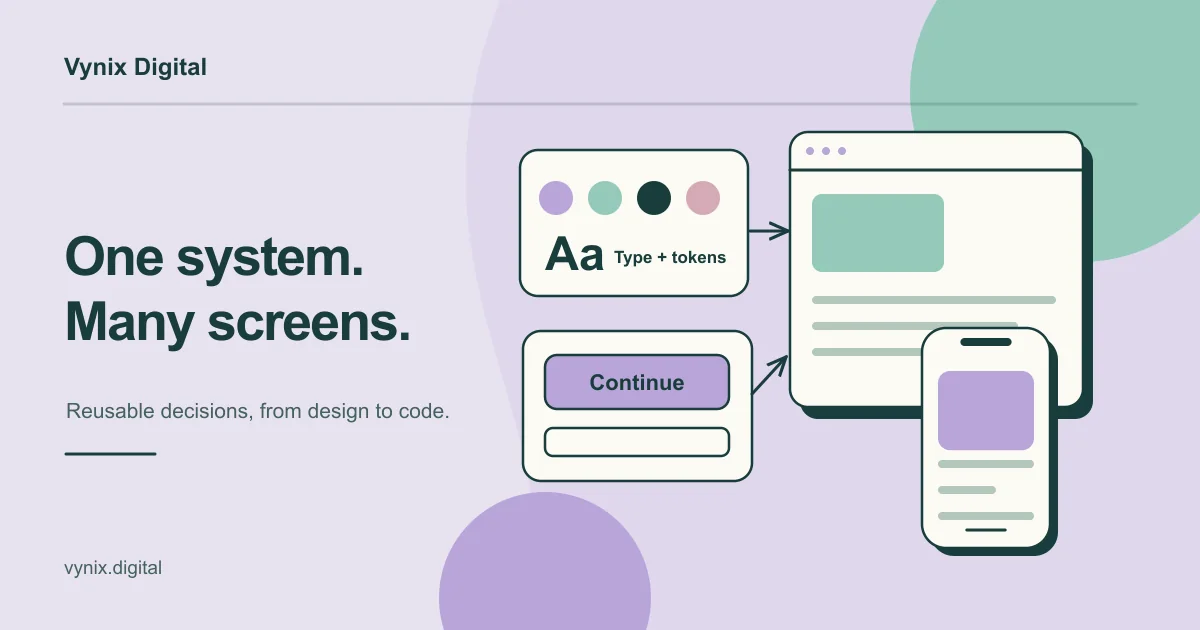
Nielsen Norman Group defines a design system as a complete set of standards for managing design at scale through reusable components and patterns. In practice that means a component library (buttons, form fields, cards, navigation, each with its states), a style guide covering type, color and spacing, and named values that developers can reuse in code.
Handoff is where many projects lose quality. Developers need specs, exported assets, notes on interactions, responsive behavior at different screen sizes, and answers about edge cases. That holds whether the build is a React or Next.js website or a cross-platform mobile app, and the designer should stay available during the build.
If you are comparing providers for UI/UX design and Figma design systems, ask to see a sample handoff file before you sign. It tells you more about how the build will go than a polished portfolio shot.
Step 8: Iteration after launch
Launch is the first time you see how your whole audience uses the design, not just a handful of test participants. Review analytics, funnel drop-off, session recordings and support tickets in the weeks after release.
That data feeds a list of improvements, ranked by impact. If a marketing site gets traffic but few inquiries, the fix is often in page structure and calls to action rather than ad spend. Our guide on why a website is not generating leads covers the most common causes.
How long does the UI/UX design process take?
There is no honest single number, because scope varies so much. Agree a timeline at the start, with review dates built in. These factors move it most:
- Unique screens and flows. Twenty pages built from one template take far less time than ten screens that each work differently.
- User types. A product with customers, staff and admins needs separate flows for each.
- Research depth. Interviewing users takes longer than reviewing analytics, and is usually worth it.
- Brand readiness. If you have no logo, colors or tone of voice yet, that work comes first.
- Platforms. Responsive web, iOS and Android each add layouts and states.
- Feedback speed. Slow comments and long sign-off chains add weeks.
- A full design system versus a lighter style guide.
How to give useful design feedback
Good feedback speeds up a project more than almost anything else you control. A few habits help.
- Tie comments to users and goals. “Our buyers are hospital procurement teams, and this feels too casual for them” is more useful than “I don’t like the blue.”
- Describe the problem, not the fix. “I couldn’t find pricing” lets the designer find the best solution. “Make that button bigger” might not solve it.
- Match feedback to the stage: structure on wireframes, appearance on mockups, behavior on prototypes.
- Consolidate your team’s comments into one list, and settle internal disagreements before sending it.
- Be specific about the screen, the element and the reason, and comment directly in the design file where you can.
- Say what works, so it does not get changed in the next round.
Common mistakes
Skipping research. Teams that jump straight to screens often design the wrong thing well. A few days of discovery can prevent weeks of rework.
Designing for yourself. Founders know the product too well to see it like a newcomer. What feels obvious to you may confuse a first-time visitor, which is exactly what testing exposes.
Designing only the happy path. Empty states, errors and slow connections are part of the experience. If nobody designs them, developers will improvise.
No proper handoff. Without specs and a component library, developers guess, and the built product drifts from the approved design.
Ignoring accessibility. Low-contrast text, tiny tap targets and form fields without labels shut out real users. Building to WCAG basics from the start is much easier than retrofitting later.
Treating launch as the finish line. The first release is your best source of real data, so plan time and budget to act on it.
Conclusion
A well-run UI/UX design process gives you something concrete to review at every step, from research findings to a tested prototype and developer-ready files. When you know what each stage should produce, you can hold any design partner to it.
If you are planning a new product or a redesign, take a look at our UI/UX design services, then tell us about your project and we can talk through the right scope for it.