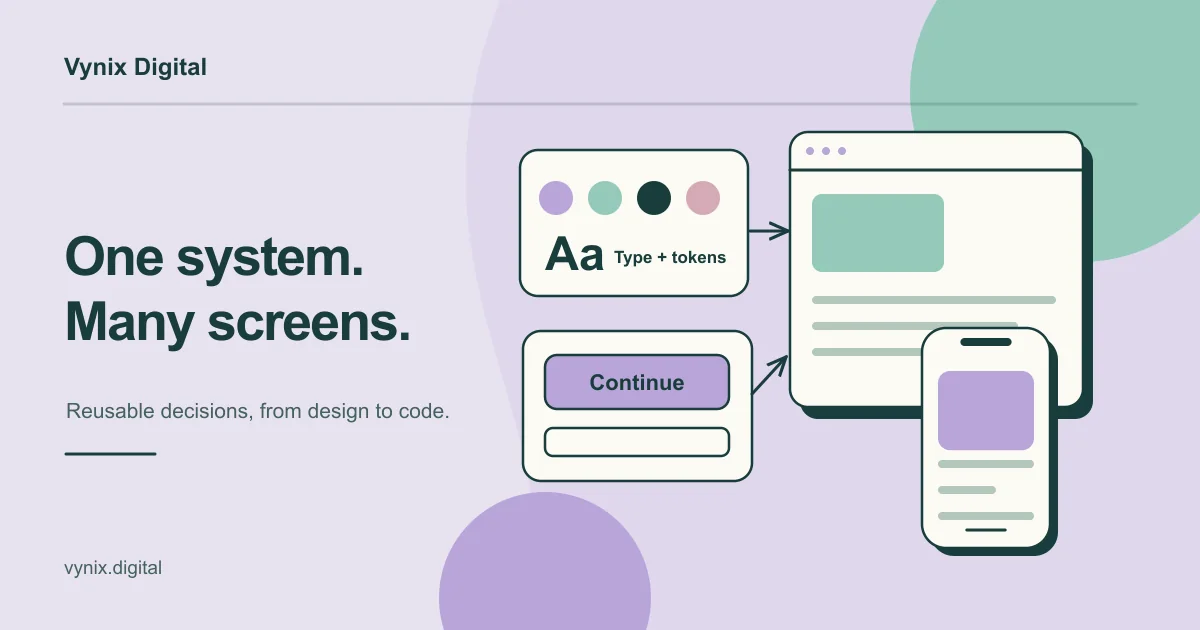
Most product teams don’t plan a design system. They back into one after the fourth slightly different button, the third custom date picker, and a release where the web app and the mobile app disagree about what “primary blue” means. By then, every new screen costs more than it should.
A design system is a shared set of design decisions, reusable components, and written rules that keep design and code consistent as a product grows. You need one when inconsistency starts slowing your team down, usually once you have more than one product surface or several people shipping UI. Before product-market fit, you usually don’t.
If you lead product, marketing, or operations at a growing company, this guide covers what a design system contains, how it differs from a style guide and a UI kit, how to tell if you’re ready, and how to start small.
What a design system actually contains
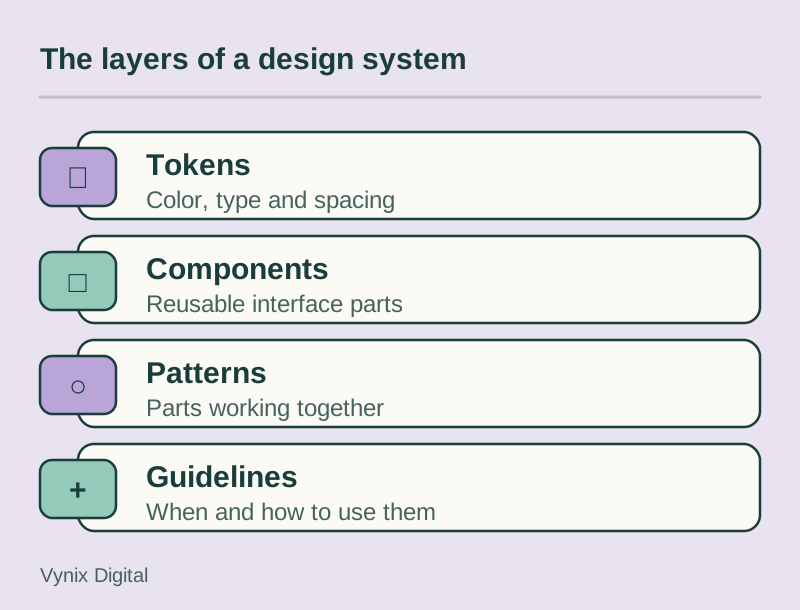
Nielsen Norman Group defines a design system as “a complete set of standards intended to manage design at scale using reusable components and patterns” (Nielsen Norman Group). In practice, that breaks into four layers, each built on the one below it.
Design tokens
Tokens are the smallest design decisions, stored as named values: color-primary-600, space-4, radius-md, font-size-body. Instead of a developer typing #2563EB into forty files, every button, link, and focus ring references the same token. Change the token once and the change flows everywhere.
Good token sets usually have two tiers. Base tokens hold raw values (a blue at a specific shade). Semantic tokens describe purpose, such as color-action-primary or color-text-danger. The semantic tier is what turns dark mode or a rebrand into a configuration change instead of a redesign.
Components
Components are the reusable building blocks: buttons, inputs, selects, modals, cards, tables, navigation. A useful component library documents each one’s variants, its states (default, hover, focus, disabled, error, loading), and the matching code. A component that exists only in Figma is half a component.
Patterns
Patterns combine components to solve recurring problems: a sign-up form, an empty state, a filterable data table, a settings page, an error recovery flow. They answer questions like “where does the cancel button go” and “what happens when a search returns nothing,” so each team stops answering them differently.
Guidelines and documentation
This is the written layer: when to use a modal versus a new page, how to write button labels, content tone, and how to request a new component. Without it, people use the right components in the wrong ways. Guidelines are also where accessibility rules live, such as minimum color contrast and keyboard behavior, which we cover in our website accessibility basics.
Design system vs style guide vs UI kit
These terms often get mixed up, which causes confusion when scoping work. Here is how they differ.
| Style guide | UI kit | Design system | |
|---|---|---|---|
| What it is | Brand and visual rules: logo, colors, typography, voice | A file of ready-made UI elements, usually for one design tool | Tokens, coded components, patterns, and guidelines kept in sync |
| Main audience | Marketing, brand, content | Designers | Designers, developers, product managers, writers |
| Includes code | No | Rarely | Yes, components ship as code |
| Covers behavior and states | No | Partly | Yes |
| Maintenance | Updated occasionally | Often bought once, rarely updated | Versioned and owned like a product |
| Best for | Keeping the brand consistent across channels | Speeding up early mockups | Keeping a growing product consistent across teams and platforms |
A simple way to think about it: a style guide tells you what the brand looks like, a UI kit gives designers parts to drag around, and a design system ties design decisions to the code that ships. A design system often contains a style guide, and it can start life as a UI kit, but neither one is a design system on its own.
When is your product ready for one?
A design system pays for itself through reuse. If nothing gets reused, there is no payback. These are the signs you are ready:
- You have more than one surface. A web app plus a mobile app, a marketing site plus a customer dashboard, or several internal tools that share users.
- Several people ship UI. Two or more designers, or multiple front-end developers, building screens in parallel.
- The same component keeps getting rebuilt. If your codebase has five modal implementations, you are already paying for a design system without getting one.
- Inconsistency shows up in support or sales. Users ask why two screens behave differently, or demos feel stitched together.
- A rebrand or dark mode is on the roadmap. Both are painful without tokens and fairly cheap with them.
You should probably wait if you are still testing whether anyone wants the product, if one designer is working on one app, or if your UI changes completely every few weeks. At the MVP stage, a well-chosen open-source component library and a short list of colors and type sizes will do more for you than a custom system.
How to start small
The most common failure is treating a design system as a big-bang project. Start with what you already have and grow it as real screens need it.
- Audit what exists. Screenshot every button, input, heading, and color across your product and put them on one board. A UX audit is a natural moment to do this.
- Define a small token set. Pick the colors, type scale, spacing scale, corner radii, and shadows you actually want to keep. A modest palette and one spacing scale are plenty to start.
- Build the most-used components first. Buttons, text inputs, selects, checkboxes, and a modal appear on almost every product screen. Build them in both design and code, with every state.
- Document as you go. A short page per component (when to use it, when not to, which variants exist) beats a polished documentation site that never ships.
- Apply it to one real feature. Pick an upcoming feature and build it entirely from the system. Fix what doesn’t fit, then expand.
- Name an owner. Someone needs to approve new components and push back on near-duplicates. On a small team, that can be a few hours a week from one designer and one developer.
This order fits a normal UI/UX design process: the audit happens during discovery, tokens and components take shape alongside high-fidelity design, and the coded library grows during development. If you don’t have a designer in-house, a UI/UX design partner can run the audit and set up the first tokens and components in Figma for your developers to build from.
Keeping design and code in sync
A design system breaks the moment the Figma file and the codebase start telling different stories. A few habits keep them aligned.
Make tokens the single source of truth
Store tokens in one place and generate everything else from them. The W3C Design Tokens Community Group released the first stable version of its shared token format in October 2025, and lists tools such as Figma and Style Dictionary among its adopters (Design Tokens Community Group). That lets you define tokens once and export them to CSS variables, iOS, and Android.
Match names exactly
If the Figma component is called Button / Secondary / Small, the code component should accept variant="secondary" and size="small". Matching names make handoff faster.
Keep a living code reference
A component explorer such as Storybook shows every component and state as it actually renders in code. Designers and developers can both check it before building something new.
Version changes and give teams a way to contribute
Treat the system like a product, with releases and a changelog. A team that gets surprised by a breaking change once will stop trusting the system. When a team needs something the system doesn’t have, give them a clear way to propose it instead of building a one-off in a corner of the app.
Component-based front ends built in React or Next.js suit this well, because each design component maps directly to a reusable piece of code. Our web development work follows the same component-first approach.
Common mistakes
- Building everything before using anything. Components nobody has tried in a real screen usually need rework.
- Design-only systems. A tidy Figma library with no matching code moves inconsistency to the development stage instead of removing it.
- No owner. Without someone responsible, the system drifts within months and teams quietly go back to one-offs.
- Too many options. Six button variants and fourteen grays defeat the purpose. Fewer, well-chosen options are easier to use and to maintain.
- Skipping states and edge cases. Loading, error, empty, and disabled states are where most inconsistency hides.
- Ignoring accessibility at the token level. If your brand colors fail contrast checks, every component built on them fails too. Fix it in the tokens.
- Copying a large company’s system wholesale. Systems like Google’s Material Design solve problems for products far bigger than yours. Borrow ideas, not the full scope.
Getting started
You don’t need a design system to build a good product. Once several people are building across several surfaces, though, it becomes the cheapest way to stay consistent and ship faster. Start with an audit, a small set of tokens, and the handful of components you use most, then grow it alongside real features.
If you want help auditing your current interface or setting up tokens and components in Figma that line up with your code, see how our UI/UX design services work, then tell us about your project so we can talk through where to start.